
Start here · Illustrated walkthrough
Your first SVG, from shape to export
Select a shape, make it yours, adjust a curve, and download the result. You can follow along without writing any SVG code.
Before loading a starter: download your current SVG if you want to keep it. A starter replaces the current canvas and its autosave, even if you open it in another tab of the same browser.
1. Find your way around
Open the shapes starter for the blue rectangle, teal circle, and orange triangle shown below. Or choose Open in the editor to select your own SVG file. The Sample button loads the larger demonstration drawing.

The left panel has three tabs. Add inserts shapes, icons, text, or an image. Layers lists the objects in your drawing and helps you select a small or overlapping object. Source is for editing the SVG markup directly; it is optional for this walkthrough.
The middle is your canvas. Click an object to select it, drag it to move it, and use its handles to resize or rotate it. Fit brings the drawing back into view. The right panel's Design tab changes appearance and geometry; Path exposes path commands and points.
Try choosing Circle in Add. A new circle appears in the center and is selected automatically. Use Undo in the toolbar to remove that practice edit. Ctrl+Z also works on Windows; the Shortcuts menu lists more controls.
2. Style a shape
Select the rectangle, then choose a new Fill color in Design. You can use the color picker or enter a color in the text field. The slider next to it controls fill opacity: 100% is solid and 0% removes the visible fill. Move it back above zero to restore the fill.
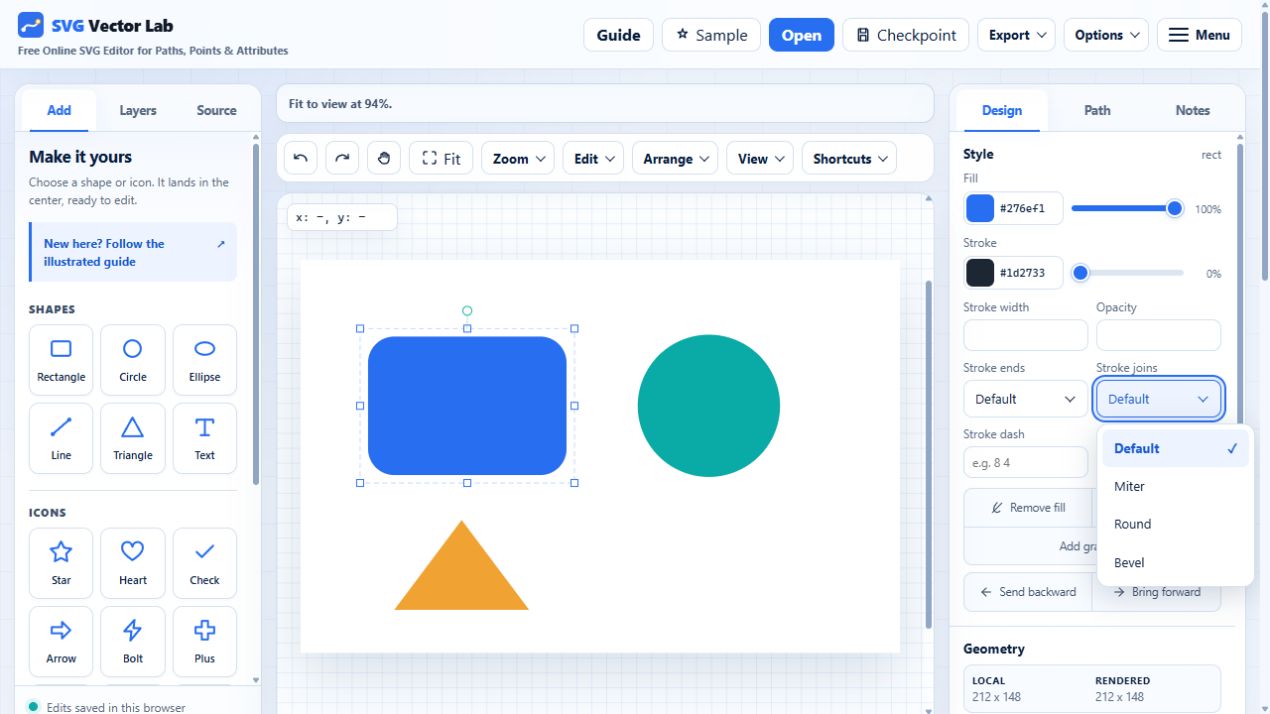
Choose Add stroke if the shape has no outline. Set a stroke color and width, then try Round under Stroke joins. Stroke ends affects open lines and paths. These controls affect the selected object, while Options → Canvas background changes the drawing's background.
To use a dropdown with the keyboard, press Enter or Space to open it, use the arrow keys to move through options, then Enter to choose. Escape closes it without applying the highlighted option. For a focused opacity slider, use the arrow keys for small changes, Home for the minimum, and End for the maximum.
If an object disappears, first check its fill, stroke, and opacity. In Layers, the top of the list is the front of the drawing. Up brings a layer forward and Down sends it behind the next layer. Groups stay together, and their indented contents move within the group. Unavailable moves are disabled at the edge of a stack or beside a locked layer. The other row buttons rename, hide, and lock the layer.
3. Edit a curve
Save any drawing you want to keep, then open the path starter. Choose Layers, select the editable path, and open Path on the right. The curve's points and connecting handles are now visible on the canvas.

Drag one endpoint a short distance, then Undo. Next, drag a control handle to change the curve without moving that anchor. You can also edit the numeric parameters in the Path panel. Start with small changes so you can see which part of the curve each value controls.
A rectangle or circle does not start as a path. Select it and choose Edit → Convert to path before editing its individual points. To draw a new path, choose Pen / Bezier in Add, click to place points, and press Enter to finish. Escape cancels the drawing in progress.
For more detail, read editing SVG paths and understanding Bezier curves. You do not need to memorize command letters to start moving points visually.
4. Save and export
Open Export at the top. Choose Download SVG for an editable vector file, or Download PNG for a raster image. SVG preserves the shapes and paths for later editing. PNG is useful when another app needs a conventional image.
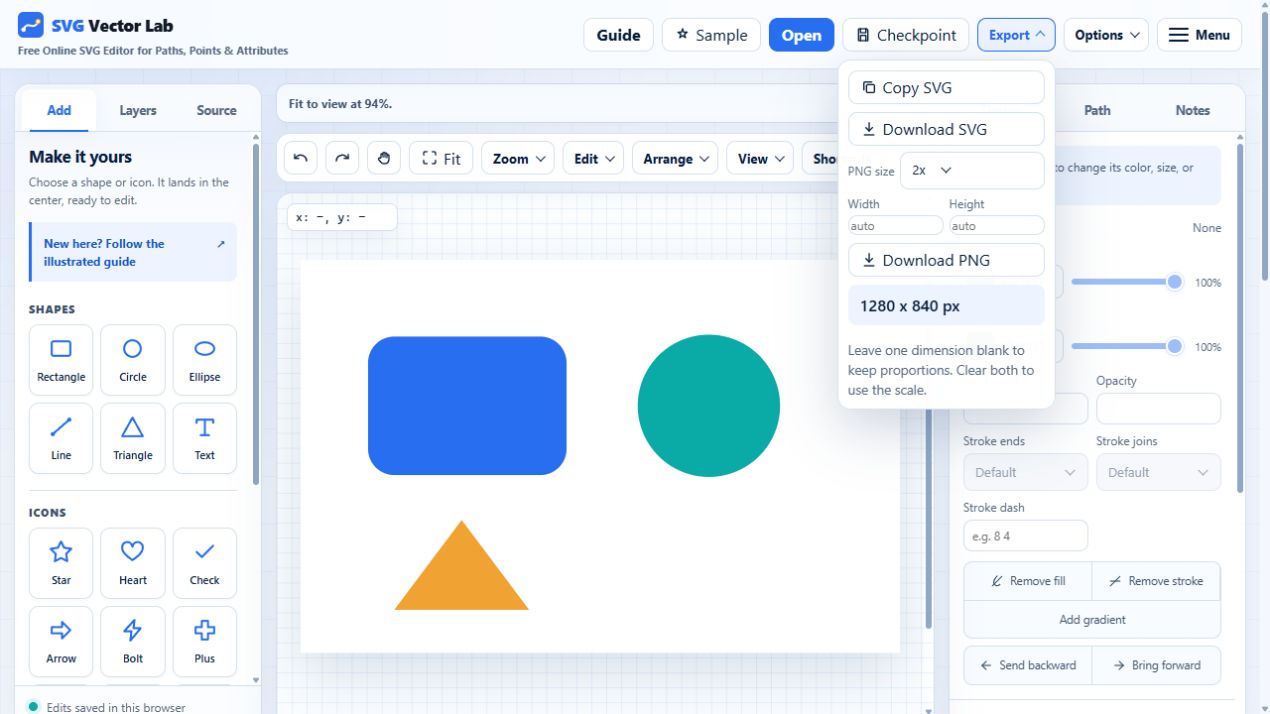
For PNG, choose a preset such as 2x for a larger image. Alternatively, enter a custom width or height; the editor uses the last dimension you edited to preserve the drawing's aspect ratio. Clear both custom fields to return to the preset scale. The size preview tells you what will be exported.
For a transparent background, open Options and set Canvas background opacity to 0%. Export a PNG and inspect it in the app where you plan to use it. Embedded images and fonts can affect the result, so check your actual exported file before sharing it.
Autosave keeps the current drawing in this browser. Checkpoint provides a separate local save and restore dialog. Neither is a portable backup: clearing site storage or switching browsers can remove access to those copies. Download SVG when you want a file you can keep, move, or reopen elsewhere.
Smaller screens, translation, and privacy
On a narrow screen, use the panel buttons to open the left tools or right inspector. Add closes after inserting a shape so you can see it on the canvas. Open Inspector to style it, and close a panel when you need more space. Fit resets the view after moving between panels; dropdowns and sliders remain keyboard accessible.
Your browser can translate the interface labels and this guide. The drawing itself and SVG code are marked to stay unchanged, so translating the page should not rewrite text inside your artwork. This uses the HTML translation attribute; support depends on your translation tool. Screenshots show the English interface; translated labels may be longer.
Editing works with analytics off. Choose Keep analytics off, or close the privacy dialog, to save that choice for this browser. Reopen Analytics choices in the footer whenever you want to change it. Private browsing and clearing site storage can reset the saved choice.
Optional analytics records interface interactions to help improve the editor. All canvas artwork, source code, and input values stay hidden in replays. See the privacy policy for details.
Ready to try it? Return to the editor, add one shape, change its color, and download an SVG. That short loop covers the core workflow.